Proofread More Languages + Good-bye API Keys
So many things to announce, how do I do it in one blog post? Let’s do a list. Drum role roll please.
5. Good-bye API keys
We’ve gotten rid of the AtD API keys. I was pushing to ask for more information and force folks to download a white paper before getting anything. Needless to say, I lost that battle. Using After the Deadline no longer requires registering with us. It’s still free for personal use. If you have a commercial need, grab our open source software.
4. Open Source Software – Updated Release
Finally, after all this time, After the Deadline’s server software is in a public subversion repository. We’ve also repackaged the current code and updated some of the documentation. Now you can check out the server software and stay in sync with what we’re using. We also have a mechanism (a local.sl file) where you can make local changes and not worry about us breaking them during future updates.
3. AtD speaks multiple languages
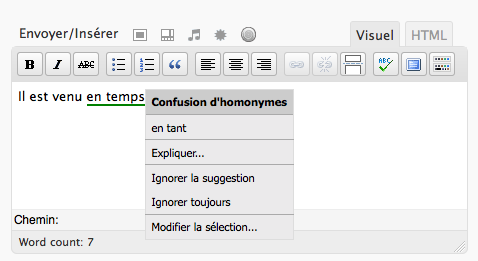
Yes, now AtD speaks multiple languages. We’ve put servers in place for French, German, Portuguese, and Spanish. We have more languages ready to go and we’ll make those available in the future. We’re providing contextual spell checking for these languages. French and German have grammar checking courtesy of the excellent Language Tool project. Misused word detection is under development.
The AtD Language Pack on our open source server page has everything you need.
2. bbPress Plugin Update
As if some otherworldly power was driving him, Gautam released an update to AtD/bbPress with support for French, German, Portuguese, and Spanish on Friday. How he knew about all this stuff before us, I don’t know 🙂 But it’s great and if you use bbPress you need to get the plugin.
1. WordPress Plugin Update with Translations
And yes, our WordPress plugin has been updated to banish the API key nag-screen and to support proofreading in French, German, Portuguese, and Spanish.
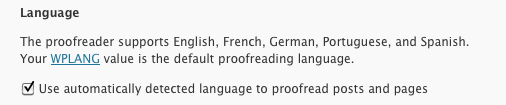
The updated WordPress plugin uses your WPLANG setting to decide which language it should proofread in. If you blog in many languages or this setting doesn’t work for you, visit your profile page (the same place where all the AtD settings are) and enable the proofread with detected language option. With this turned on, After the Deadline will detect your language and apply the correct proofreader to it.
Thanks to the wonderful WordPress community volunteers, the AtD plugin has translations for Portuguese, Hindi, Japanese, French, Finnish, Bosnian, and Persian.
0. An Extra Bonus
I originally wanted to provide 10 exciting news items and this post became way too long with too much stuff at the top. So now you get a bonus item. We’ve also released updates to the AtD front-end components. They’re L10n ready and AtD/jQuery is now compatible with jQuery 1.4.
N-Gram Language Guessing with NGramJ
NGramJ is a Java library for language recognition. It uses language profiles (counts of character sequences) to guess what language some arbitrary text is. In this post I’ll briefly show you how to use it from the command-line and the Java API. I’ll also show you how to generate a new language profile. I’m doing this so I don’t have to figure out how to do it again.
Running
You can get a feel for how well NGramJ works by trying it on the command line. For example:
$ cat >a.txt
This is a test.
$ java -jar cngram.jar -lang2 a.txt
speed: en:0.667 ru:0.000 pt:0.000 .. de:0.000 |0.0E0 |0.0E0 dt=2812
$ cat >b.txt
Wikipedia ist ein Projekt zum Aufbau einer Enzyklopädie aus freien Inhalten in allen Sprachen der Welt.
$ java -jar cngram.jar -lang2 b.txt
speed: de:0.857 ru:0.000 pt:0.000 .. en:0.000 |0.0E0 |0.0E0 dt=2077
Using
Something I like about the API for this program–it’s simple. It is also thread-safe. You can instantiate a static reference for the library and call it from any thread later. Here is some code adopted from the Flaptor Utils library.
import de.spieleck.app.cngram.NGramProfiles;

protected NGramProfiles profiles = new NGramProfiles();

public String getLanguage(String text) {
 NGramProfiles.Ranker ranker = profiles.getRanker();
 ranker.account(text);
 NGramProfiles.RankResult result = ranker.getRankResult();
 return result.getName(0);
}
Now that you know how to use the library for language guessing, I’ll show you how to add a new language.
Adding a New Language
NGramJ comes with several language profiles but you may have a need to generate one yourself. A great source of language data is Wikipedia. I’ve written about extracting plain-text from Wikipedia here before. Today, I needed to generate a profile for Indonesian. The first step is to create a raw language profile. You can do this with the cngram.jar file:
$ java -jar cngram.jar -create id_big id_corpus.txt
new profile 'id_big.ngp' was created.
This will create an id.ngp file. I also noticed this file is huge. Several hundred kilobytes compared to the 30K of the other language profiles. The next step is to clean the language profile up. To do this, I created a short Sleep script to read in the id.ngp file and cut any 3-gram and 4-gram sequences that occur less than 20K times. I chose 20K because it leaves me with a file that is about 30K. If you have less data, you’ll want to adjust this number downwards. The other language profiles use 1000 as a cut-off. This leads me to believe they were trained on 6MB of text data versus my 114MB of Indonesian text.
Here is the script:
%grams = ohash();
setMissPolicy(%grams, { return @(); });

$handle = openf(@ARGV[0]);
$banner = readln($handle);
readln($handle); # consume the ngram_count value

while $text (readln($handle)) {
   ($gram, $count) = split(' ', $text);

   if (strlen($gram) <= 2 || $count > 20000) {
      push(%grams[strlen($gram)], @($gram, $count));
   }
}
closef($handle);

sub sortTuple {
   return $2[1] <=> $1[1];
}

println($banner);

printAll(map({ return join(" ", $1); }, sort(&sortTuple, %grams[1])));
printAll(map({ return join(" ", $1); }, sort(&sortTuple, %grams[2])));
printAll(map({ return join(" ", $1); }, sort(&sortTuple, %grams[3])));
printAll(map({ return join(" ", $1); }, sort(&sortTuple, %grams[4])));
To run the script:
$ java -jar lib/sleep.jar sortit.sl id_big.ngp >id.ngp
The last step is to copy id.ngp into src/de/spieleck/app/cngram/ and edit src/de/spieleck/app/cngram/profiles.lst to contain the id resource. Type ant in the top-level directory of the NGramJ source code to rebuild cngram.jar and then you’re ready to test:
$ cat >c.txt
Selamat datang di Wikipedia bahasa Indonesia, ensiklopedia bebas berbahasa Indonesia
$ java -jar cngram.jar -lang2 c.txt
speed: id:0.857 ru:0.000 pt:0.000 .. de:0.000 |0.0E0 |0.0E0 dt=1872
As you can see NGramJ is an easy to work with library. If you need to do language guessing, I recommend it.
After the Deadline for Firefox – Released
We received addons.mozilla.org approval of After the Deadline recently and we’re pleased to announce the release of the After the Deadline add-on for Firefox.
After the Deadline works in text areas on most webpages. Simply push a button (F7) or click  to check your spelling, style, and grammar no matter where you are.
This add-on has all the After the Deadline features. You can enable the style checker options you use in the preferences and you can ignore errors to prevent them from coming up.
Links of interest:
- Download After the Deadline for Firefox
- View the documentation
- Visit the homepage: http://firefox.afterthedeadline.com
After the Deadline is an open source proofreading technology. You can also embed it into web applications using TinyMCE, jQuery, and CKEditor.
How I Trie to Make Spelling Suggestions
Spell checking is a three-step process. Check if a word is in a dictionary, generate potential suggestions, and then sort the suggestions–hopefully with the intended word on top. Dr. Peter Norvig wrote a great essay on this and I suggest you read it.
Knowing about this three-step process, can you guess what the slowest part of it is? It’s not the dictionary check. It’s not the sorting of the suggestions either. Generating the potential suggestions is the killer. Today I’ll discuss a clever way to use to speed this process up using Tries.
The Problem: How I Generate Suggestions
The AtD spelling corrector generates potential suggestions by considering all words within two edits of the misspelled word. An edit is inserting, deleting, or substituting a letter. Transposing two letters is also an edit. From my own tests I found 96% of the time the correct word is within two edits. 1.5% of the time the desired word is within three edits. Beyond that, who cares?
Why is this operation so slow? The naïve algorithm is to generate all possible edits to the misspelled word to get every edit within an edit distance of one. For a word of length n, we have 54n+25 edits assuming a lowercase alphabet of a-z. To get all words within an edit distance of two, apply all possible edits to the previously generated edits. This number gets big quickly and forget three edits using this algorithm.
The Trie
A Trie is a tree data structure for storing values associated with a key. Each character of the key represents a branch of the Trie. Retrieving a value consists of finding the branch associated with the first character of the key, chopping it off, and repeating this process until there is no key. Tries are nice because the common values of the keys are shared making them space efficient for storing things like dictionaries.
Here is the Sleep code to build a Trie:
sub trie {
	local('$trie $word $x $root $letter');

	$trie = %();

	foreach $word ($1) {
		$root = $trie;

		for ($x = 0; $x < strlen($word); $x++) {
			$letter = charAt($word, $x);

			if ($letter !in $root) {
				$root[$letter] = %();
			}
			$root = $root[$letter];
		}

		$root['__'] = $word;
	}
	return $trie;
}
This function creates a Trie represented as a Sleep hash. Each branch in the Trie has letters which point to other Trie branches. A branch that represents a word will have a __ key with the associated word.
A word is added to the Trie by looking for the first letter of the word in the root branch. If the letter is not there, a new branch is made. This first letter is then removed from the word and the branch associated with the letter becomes the root branch. This process is repeated until there are no letters left in the word. At this point the __ key is set to mark that this branch represents a complete word.
$ java -jar lib/sleep.jar
>> Welcome to the Sleep scripting language
>
> interact
>> Welcome to interactive mode.
Type your code and then '.' on a line by itself to execute the code.
Type Ctrl+D or 'done' on a line by itself to leave interactive mode.
include("trie.sl");
$trie = trie(@("apple", "bat", "bart", "battle", "cat"));
println($trie);
.
%(b =>
       %(a =>
              %(t =>
                     %(t =>
                            %(l =>
                                   %(e =>
                                          %(__ => 'battle')
                                    )
                             ),
                __ => 'bat'),
                r =>
                     %(t =>
                            %(__ => 'bart')
                      )
                )
         ),
  c => %(a => %(t => %(__ => 'cat'))),
  a => %(p => %(p => %(l => %(e => %(__ => 'apple')))))
 )
If you’ve been exposed to Tries before, you’ve probably seen them used to check if a word is in the dictionary or not. Here is the Sleep code to test a word:
sub inTrie {
	local('$x $word $trie $letter');
	($word, $trie) = @_;

	for ($x = 0; $x < strlen($word); $x++) {
		$letter = charAt($word, $x);

		if ($letter !in $trie) {
			return;
		}
		$trie = $trie[$letter];
	}

	return iff ($trie['__'] eq $1);
}
This function walks the Trie using a process similar to adding a word. If there is no branch for the current letter then the test fails. If we’ve walked through all the letters, the __ key is checked to see if we indeed have a word match.
Typically __ doesn’t contain the word. It’s usually a boolean flag. I’m lazy though and put the word in this slot to make debugging the Trie code easier and to make it easier for me when testing if a word is in the Trie.
Generating Suggestions
AtD uses this Trie structure to generate all edits for a misspelled word. The Trie is nice because I only have to traverse paths that may yield words and I don’t have to keep a lot of traversal information in memory. Here is the code:
sub edits {
    local('$trie $word $results $depth $root $branch $letter');
	($trie, $word, $results, $depth) = @_;

	if (strlen($word) == 0 && $depth >= 0 && $trie['__'] ne '') {
		$results[ $trie['__'] ] = 1;
	}

	if ($depth >= 1) {

		# deletion. [remove the current letter, and try it on the current branch--see what happens]
		if (strlen($word) > 1) {
			edits($trie, substr($word, 1), $results, $depth - 1);
		}
		else {
			edits($trie, "", $results, $depth - 1);
		}

		foreach $letter => $branch ($trie) {
			if ($letter eq '__') { continue; }

			# insertion. [pass the current word, no changes, to each of the branches for processing]
			edits($branch, $word, $results, $depth - 1);

			# substitution. [pass the current word, sans first letter, to each of the branches for processing]
			if (strlen($word) > 1) {
				edits($branch, substr($word, 1), $results, $depth - 1);
			}
			else {
				edits($branch, "", $results, $depth - 1);
			}
		}

		# transposition. [swap the first and second letters]
		if (strlen($word) > 2) {
			edits($trie, charAt($word, 1) . charAt($word, 0) . substr($word, 2), $results, $depth - 1);
		}
		else if (strlen($word) == 2) {
			edits($trie, charAt($word, 1) . charAt($word, 0), $results, $depth - 1);
		}
	}

	# move on to the next letter. (no edits have happened)

	if (strlen($word) >= 1 && charAt($word, 0) in $trie) {
		$letter = charAt($2, 0);
		if (strlen($word) > 1) {
			edits($trie[$letter], substr($word, 1), $results, $depth);
		}
		else if (strlen($word) == 1) {
			edits($trie[$letter], "", $results, $depth);
		}
	}

	# results are stored in a hash to prevent duplicate words
	return keys($results);
}
This function considers four types of edits: deletion, insertion, substitution, and transposition. This function returns a list of words within N edits from the specified word. It does this by considering the first letter of the word, the rest of the word, and the current branch of the Trie.
It handles deletions by applying this function to the current Trie branch and the rest of the word. In this way, all edits that could be generated from this letter being deleted are found.
With each call to edits, the function subtracts 1 from the max depth counter. When the max depth value is zero, no more traversals into the Trie are allowed. This counter makes sure we generate only words within the desired number of edits.
Insertion iterates through all child branches (representing each possible next letter) and applies the edit function to those branches with the current as an argument. In this way each branch is treated as a possible insertion before the current letter in the word.
Substitution iterates through each child branch and applies the edit function to those branches with the rest of the word as an argument.
Transposition swaps the first and second letters of the current word and applies the edit function on this new word using the current branch.
A Trie branch that maps to a word is added to the suggestion pool when it’s called with an empty string for the word and the depth counter is greater than zero (meaning we’re within the allowed number of edits).
Once these steps have completed, the algorithm finds the Trie branch for the next letter in the word, and calls edits with the branch for that letter as the Trie and the rest of the word. The depth counter isn’t changed as no edits were made, this is just advancing the algorithm to the next letter.
Here is a printout of edits applied to ‘sucess’ using a Trie constructed from the public domain 1939 Webster’s dictionary.
$ java -jar lib/sleep.jar
>> Welcome to the Sleep scripting language
> interact
>> Welcome to interactive mode.
Type your code and then '.' on a line by itself to execute the code.
Type Ctrl+D or 'done' on a line by itself to leave interactive mode.

include("trie.sl");

$dictionary = readAll(openf("/usr/share/dict/words"));
println(size($dictionary));
.
98569

$trie = trie($dictionary);
printAll(edits($trie, "sucess", %(), 2));
.
surest
sunless
sauces
sucks
sauce's
excess
recess
stress
Luce's
sices
access
duress
saucers
duchess
supers
guess
suers
suckers
success
sues
I’ve found this method is faster than the naïve edits generation algorithm. Let me know how it works for you.
This code is from the After the Deadline software service which is available under the LGPL license. You can find the code to the rest of the system at http://open.afterthedeadline.com
AtD at the DC CiviCRM Meetup
Washington, DC is full of non-profit organizations, advocacy groups, and NGOs. Last night I had a chance to meet with a group of CiviCRM enthusiasts. CiviCRM is an open source tool to help non-profits manage their donors. My goal was to spread the AtD love and talk about how one could add grammar and spell checking to their installation.
The instructions to add AtD to CiviCRM are:
- Extract atd-ckeditor.tgz into civicrm/packages/ckeditor/plugins
- I just noticed, the slides are wrong, it has to go into the plugins directory
- Edit civicrm/packages/HTML/QuickForm/ckeditor.php and follow slide 23.
- Run the Open Source AtD Service (it’s RAM hungry)
- Edit civicrm/packages/ckeditor/plugins/atd-ckeditor/proxy.php to point to your AtD server.
As you can see, it requires some hacking but it is possible. The same process for adding AtD to an app like CiviCRM is also possible for other applications as well. AtD has front-end components for TinyMCE, jQuery, and CKEditor.
The slides are here:
Comments Off on AtD at the DC CiviCRM Meetup
Coming Soon: Firefox Add-on
After the Deadline already can be easily embedded and can travel with you as a bookmarklet, but what if you could have After the Deadline’s superior grammar and spell check incorporated into the browser? We’re going to make this happen with the After the Deadline Firefox add-on. The Firefox add-on will let you use After the Deadline on web forms across the web, while providing the clean integration only possible through an add-on.
While there is still much work to be done on the add-on, a very early-stage beta of the add-on is now available for download. Please install the add-on and give it a try! If you find a bug or have a feature request, please post it to our trac bug tracker or email us. We’ll look forward to hearing your feedback!
WordPress Plugin and Front-End Component Updates
We’ve accomplished a lot lately, so I have some updates to share with you. The AtD/WordPress plugin, jQuery plugin, and TinyMCE plugin have all seen updates. Here is a list of what you get to look forward to:
jQuery API Updates
The AtD/jQuery API is the big winner in terms of fixes. This updated library builds on the AtD Core UI Module. The Core UI Module allows the jQuery API and TinyMCE plugin to share a lot of code. This means a bug fix in one is a fix in another.
The jQuery API includes a new jQuery-like syntax for attaching to a textarea. This is the technique powering the AtD Bookmarklet released last week. Do you want to add AtD to a webpage? Here is the code that does it:
<script src="http://ajax.googleapis.com/ajax/libs/jquery/1.3/jquery.min.js"></script>
<script src="http://static.afterthedeadline.com/atd-jquery/scripts/jquery.atd.textarea.js?ver=011210"></script>
<script src="http://static.afterthedeadline.com/atd-jquery/scripts/csshttprequest.js"></script>
<link rel="stylesheet" type="text/css" media="screen" href="http://static.afterthedeadline.com/atd-jquery/css/atd.css" />
<script>
   jQuery(function() {
      $('textarea').addProofreader();
   });
</script>
That’s not all. The jQuery Textarea API takes advantage of the new contentEditable HTML 5 feature in non-IE browsers. If you’re using a new browser you can change your content from the proofreading view.
TinyMCE API Updates
The AtD/TinyMCE module now takes advantage of the Core UI Module.
WordPress Plugin Updates
The WordPress plugin user interface is now ready for localization. If you’d like to contribute, please read the call for volunteers. The Visual Editor and HTML Editor now share a lot of code (and fixes) thanks to the Core UI Module. If you’re using AtD on your WordPress blog, I highly recommend this update.
Towards a More Usable AtD with Content Editable
Working on the web is quite exciting. Standards are evolving and the ideal ways of doing things keep coming closer to reality. Proofreading text areas with AtD isn’t as natural as I’d like. Clicking a button activates a proofreading mode. This mode places the contents of the text area into a DIV and inserts the After the Deadline markup with the text. Under this model, you click the highlighted errors to select a suggestion from a context menu. Once you’re done proofreading your text area is restored with the updated contents.
This model works OK. GMail uses it. Meetup.com uses it. I believe I’ve seen it in many other places.
Last night I decided to play with the new contentEditable attribute. This new(ish) attribute allows a developer to flag an HTML element as editable. This means the user can interact with the contents of the element in place. They can type text, move the cursor, and anything else they would do with a text area. It’s exciting stuff. Up until now web apps have achieved in-place editing by creating an iframe displaying a blank page with the design mode attribute set to true. This solution is a bit heavy.
I’m looking at using contentEditable with After the Deadline. I’m almost surprised we haven’t seen it in more places. It’s a harmless attribute to add to an application. If it works, users can interact with the div as if it’s the text area until the text area is restored. If it doesn’t work, then the user is stuck interacting with the div using the conceptual edit and proofread modes.
The only challenge is dealing with newlines correctly. When you press enter, the browser creates a line-break or a new paragraph (this is unspecified). When emulating a text area this is undesirable. So I either get to make the proofread mode swallow enter key presses or emulate text editing behavior by detecting which browser is in use and taking browser specific action to insert a newline at the cursor. I shouldn’t have to do this as my div’s set the CSS attribute white-space to pre-wrap. Under this mode a newline in a div will produce a line-break. It’d be nice if the contentEditable mode honored this.
Despite this small hang up, contentEditable is an exciting change and we look forward to bringing it to a proofreading plugin near you.
Spell and Grammar Check Bookmarklet
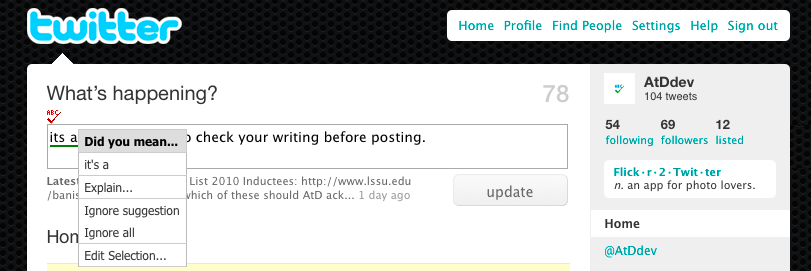
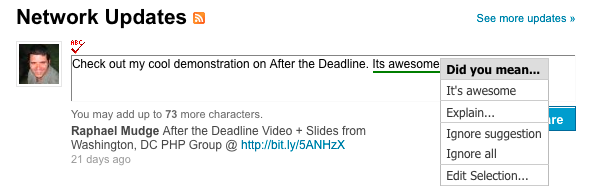
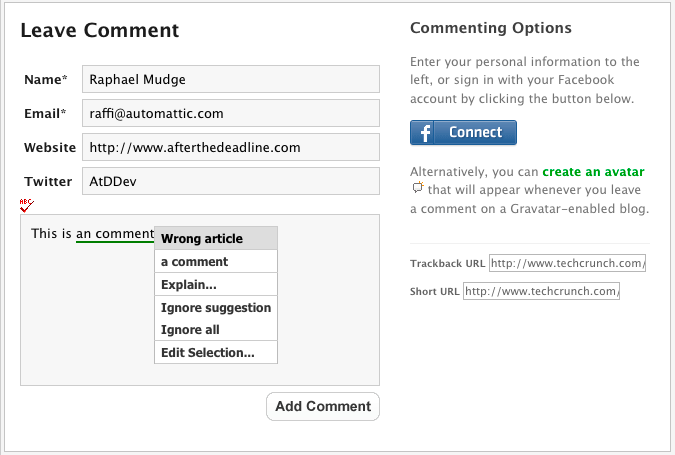
Today I’d like to present a new toy for you–the AtD Bookmarklet. With it, you can click “Add Proofreader” from your bookmark bar and an AtD button will magically appear above every text area on the current page. You now have the ability to check spelling, grammar, and misused words from your browser.
You can get it here. What can you do with this new bookmarklet?
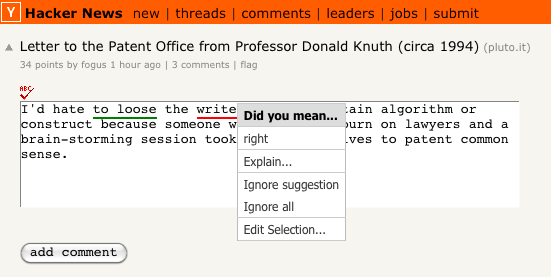
1. Look smart when posting to Hacker News
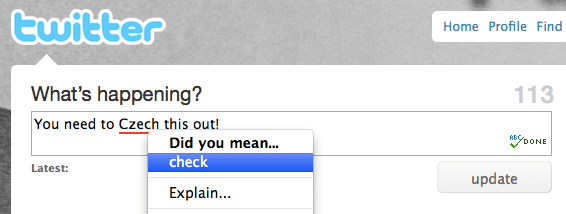
2. Check your tweets before they go out
3. Avoid an embarrassing mistake on your LinkedIn profile
4. Spell check your comments–on any blog!
This proofreading technology uses an open source back-end. We also have libraries for jQuery, TinyMCE, and CKEditor to make it easy to embed After the Deadline into your application.
Chrome Update – I’ve received several reports (and have verified) that this bookmarklet does not work in Google Chrome. The AtD libraries work with Chrome and everything is happy when requests are to and from the same host. When I find a fix, I’ll post something here.
Chrome Update 2 – After investigating with Google Chrome, I believe this bookmarklet communicates in a way that conflicts with Chrome’s pop-up blocker or browser security policy.
Add Grammar and Spell Check to Any WYSIWYG Editor
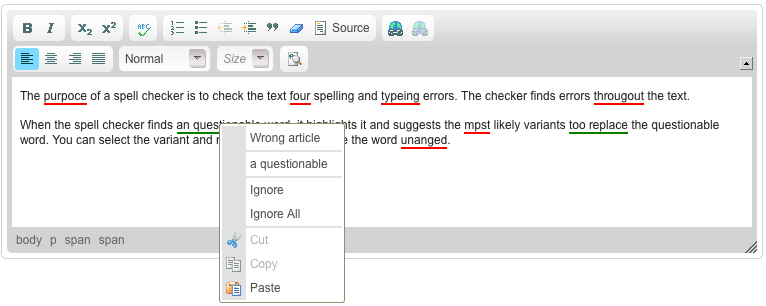
After the Deadline front-end libraries are available for jQuery and TinyMCE. You’ve asked what it would take to make AtD available in another WYSIWYG environment or even in a web-based word processor. In the past I’d answer that you’d need to study the code to either the jQuery or TinyMCE extensions, visit the mountains, meditate and wait for the answer to come.
Today I’m bringing the mountain to you. Much of the code that makes After the Deadline work in TinyMCE and jQuery is similar. Painfully similar. To the point where a bug in one is a bug in the other. I’ve refactored these extensions and created an After the Deadline Core UI module. This module is browser independent with no external dependencies. It provides functionality to parse the AtD XML into an error data structure, retrieve suggestions and other information given an error phrase and a word of context, and it also abstracts away the logic to traverse a DOM and insert the AtD markup for errors.
To test this module, I gave myself one working day to port After the Deadline to CKEditor. CKEditor is a WYSIWYG editor, similar to TinyMCE. I have never used CKEditor before and this was a challenge. Still, I was able to make it quite far and in this post, I’ll show you how to add AtD to an editor using the Core UI Module.
Here is what an After the Deadline editor plugin must do:
- The first step is to setup the AtD Core UI module:
atd_core = new AtDCore();
- The next step is to define several functions that the AtD Core UI module expects. The module will use these functions to manipulate the DOM and find elements in the way that your environment expects. The full list of functions is documented in the AtD Core UI README. Here are a few of these functions from CKEditor:
atd_core.replaceWith = function(old_node, new_node) { return new_node.replace(CKEDITOR.dom.element.get(old_node)); }; atd_core.create = function(node_html) { return CKEDITOR.dom.element.createFromHtml( '<span class="mceItemHidden">' + node_html + '</span>' ); }; - Once these functions are defined you can set AtD-specific preferences like the list of strings to ignore and which types of errors to show.
atd_core.showTypes('Complex Expression, Diacritical Marks, Double Negatives, Redundant Expression'); atd_core.setIgnoreStrings('CKEditor, was thrown'); - When a user requests proofreading, it is up to you to extract the contents of the editor and post it to the After the Deadline service. Here is how I extract the editor contents in CKEditor:
var editor_contents = editor.document.getBody().getHtml();
- You should receive an XML document from the server with an error message or a data structure containing the AtD data. To check the XML document for an AtD error:
function ajax_callback(xml_response) { if (atd_core.hasErrorMessage(xml_response)) { alert(atd_core.getErrorMessage(xml_response)); return; } - If there are no errors then you’ll want to parse the XML into a data structure the Shared UI code can use. Use the processXML function to do this. It will return a JavaScript object that you will be using again.
var results = atd_core.processXML(xml_response);
- Now, let’s say you want to highlight errors in your editor. Great! Extract the contents of the editor (should be an array of elements from the root element) and pass these to markMyWords. Using the prototypes you provided earlier, this function will walk through these nodes and highlight the errors. Be thankful that you didn’t have to write the code to do this.
var nodes = editor.document.getDocumentElement().getChildren().getItem(1)['$'].childNodes;
atd_core.markMyWords(nodes, results.errors);
- Earlier, I hope you attached a click or context menu listener to your editor. If you did you can use isMarkedElement on the event target when a click occurs in your editor. If this returns true, this is your clue that a user clicked on a marked error and you should display a menu offering them suggestions.To get the suggestions, call findSuggestion using the marked element. This will return a JavaScript object with the following members that may interest you: suggestions, description, moreinfo
editor.contextMenu.addListener(function(element) { if (atd_core.isMarkedNode(element.$)) { var meta = atd_core.findSuggestion(element.$); var commands = {}; addItem(editor, meta.description, function() { }, 0, commands, 'AtD_description'); for (var x = 0; x < meta.suggestions.length; x++) addItem(editor, meta.suggestions[x], makeCallback(element.$, meta.suggestions[x]), x + 1, commands, 'AtD_suggestions'); addItem(editor, 'Ignore', makeIgnoreCallback(element.$, element.$.innerHTML), 1, commands, 'AtD_ignore'); addItem(editor, 'Ignore All', makeIgnoreAllCallback(element.$, element.$.innerHTML), 0, commands, 'AtD_ignore'); return commands; } }); - For each suggestion, I use makeCallback to generate a function to attach to the menu item. This generated function calls applySuggestion in the Core UI Module. You should use applySuggestion as it’s smart enough to do what the suggestion asks. For example, the (omit) suggestion removes the word in question:
var makeCallback = function(element, suggestion) { return function() { atd_core.applySuggestion(element, suggestion); }; }; - You may want to add functionality to let the user ignore the current error or to ignore all occurrences of it. The “Ignore suggestion” menu item removes the marked node keeping its children. No need to call into the AtD Core UI module:
var makeIgnoreCallback = function(element, word) {
   return function() {
      CKEDITOR.dom.element.get(element).remove(true);
};
To ignore all occurrences of an error, you can use the removeWords function in the Core UI Module.
var makeIgnoreAllCallback = function(element, word) { return function() { atd_core.removeWords(undefined, word); }; }; - The last thing you should do is attach a listener to remove the After the Deadline markup when the contents of the editor are grabbed. You can remove the AtD markup using the removeWords function.
And that’s it. Add in the necessary scaffolding for your editor and you have After the Deadline integration. Here are some other things you can do:
- Make an Ignore Always menu option save the user’s preference in a cookie or on your server. Resurrect this setting later with the setIgnoreStrings function.
- Keep track of the user’s preference for what types of errors to show. Use showTypes to enable these for the user.
These are the kinds of things we do in WordPress to make AtD a first-class feature for our users. If you’re looking to port After the Deadline to another environment, the AtD Core UI module will save you a lot of time.
Coming up I’ll be releasing versions of the AtD/jQuery and AtD/TinyMCE Extensions using this shared module. The AtD/CKEditor extension is available now.
 After the Deadline
8 comments